Win10系统右键添加Powershell和命令提示符方法
; 若原先有,先删除原来的[-HKEY_CLASSES_ROOT\Directory\Background\shell\OpenCmdHere][-HKEY_CLASSES_ROOT\Directory\Background\shell\runas][-HKEY_CLASSES_ROOT\Directory\Background\shell\PowershellAdmin] ;1.右键:命令行[HKEY_CLASSES_ROOT\Directory\Background\shell\OpenCmdHere]@="在此处打开命令行窗口" [HKEY_CLASSES_ROOT\Directory\Background\shell\OpenCmdHere\command]@="cmd.exe -noexit -command Set-Location -literalPath \"%V\"" ;2.右键:命令行(管理员)[HKEY_CLASSES_ROOT\Directory\Background\shell\runas]@="在此处打开命令行窗口(管理员)""ShowBasedOnVelocityId"=dword:00639bc8 [HKEY_CLASSES_ROOT\Directory\Background\shell\runas\command]@="cmd.exe /s /k pushd \"%V\"" ;3.shift+右键:Powershell(管理员)[HKEY_CLASSES_ROOT\Directory\Background\shell\PowershellAdmin]@="在此处打开 Powershell 窗口(管理员)""Extended"="" [HKEY_CLASSES_ROOT\Directory\Background\shell\PowershellAdmin\command]@="\"C:\\Windows\\System32\\WindowsPowerShell\\v1.0\\powershell.exe\" -windowstyle hidden -Command $stpath = pwd; Start-Process PowerShell -ArgumentList \\\"-NoExit\\\", \\\"-Command Set-Location -literalPath '%V'\\\" -verb RunAs"
;4.设置右键 管理员打开cmd的另一种方法(可用来替换上面的2) 通过Powershell调起,会闪过一次Powershell的窗口,去掉下面几行的[; ]可以取消注释[-HKEY_CLASSES_ROOT\Directory\Background\shell\OpenCmdHereAdmin][HKEY_CLASSES_ROOT\Directory\Background\shell\OpenCmdHereAdmin] @="在此处打开命令行窗口(管理员)"[HKEY_CLASSES_ROOT\Directory\Background\shell\OpenCmdHereAdmin\command]@="PowerShell -windowstyle hidden -Command \"Start-Process cmd.exe -ArgumentList '/s,/k, pushd,%V' -Verb RunAs\""





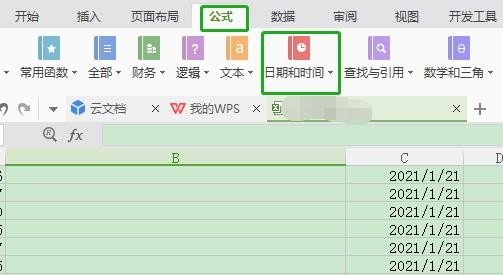
- WPS表格日期生成方法
- 杯与酒2026-03-10 08:52:46
- WPS怎么关闭广告
- 花栀2026-03-10 08:52:46
- Charamin OMP使用教程
- 枝桠2026-03-10 08:52:45
- wps怎么删除空白页
- ぐ夏筱沐2026-03-10 08:52:45
- WPS文档的自动编号怎么取消
- 凉堇年♀2026-03-10 08:52:45
- WPS怎么合并PDF文件
- 情の殇2026-03-10 08:52:45
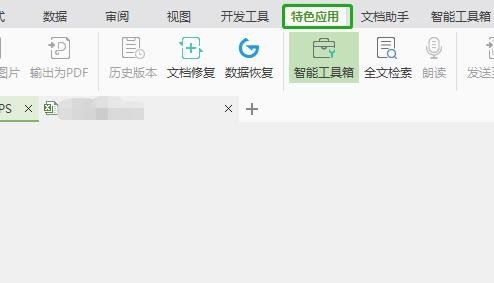
- WPS怎么设置加密
- 蓝玉2026-03-10 08:52:45
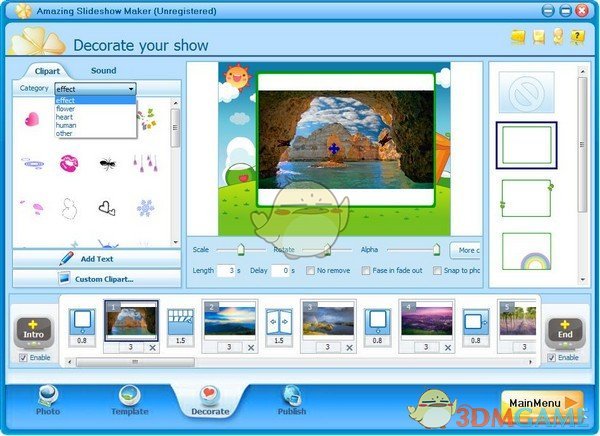
- Amazing Slideshow Maker怎么使用
- 思君2026-03-10 08:52:45
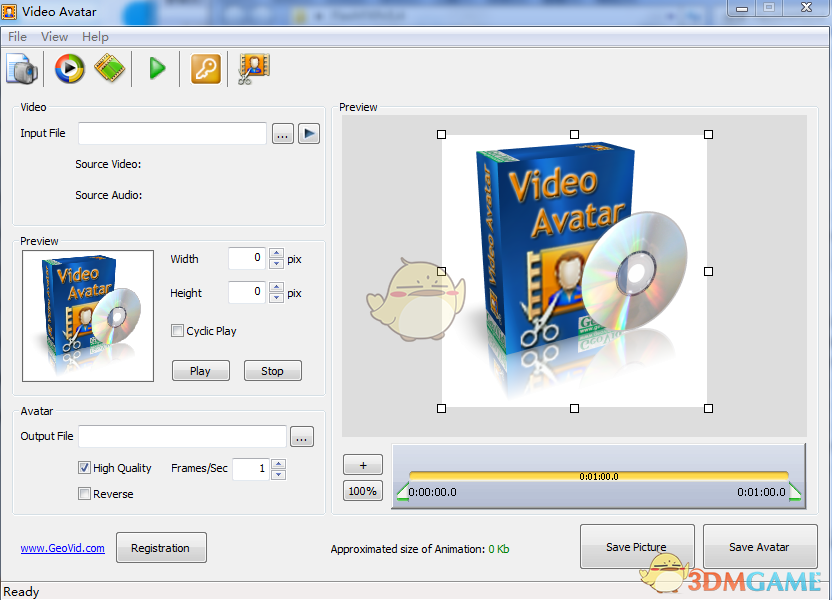
- GeoVid Video Avatar如何使用
- 花栀2026-03-10 08:52:45

- wps中怎么画思维导图
- 心蛊2026-03-10 08:52:45